Why compress before uploading
Phone and camera photos are often 3–10 MB each. Uploading them is slow on hotel or mobile connections, fills up shared drives and inboxes, and many forms reject them outright. Resizing every photo by hand in Preview before each upload gets old fast.
What Compress & Upload does
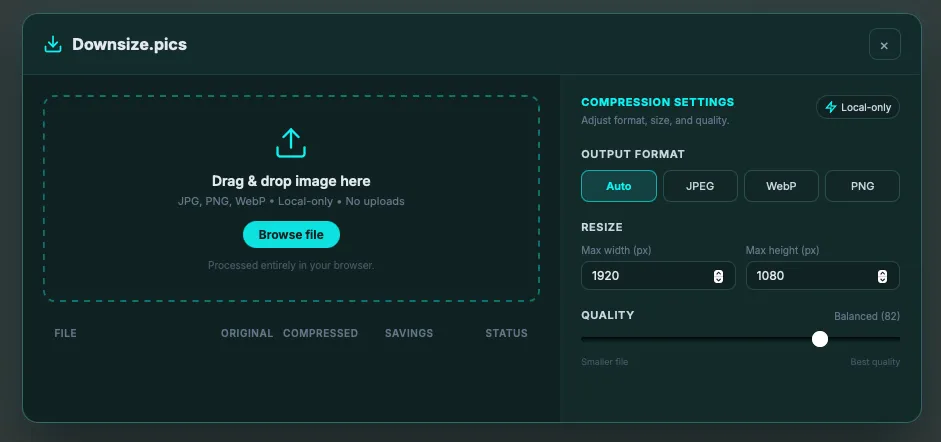
- check_circleCompresses images as you upload them, on any website
- check_circleTypical size reduction around 80% (e.g. 4.1 MB → 820 KB)
- check_circleQuality you choose, from maximum compression to near-lossless
- check_circleRuns entirely on your computer, even offline
How to do it on your Mac
-
1
Install Compress & Upload
Get it from the Mac App Store for Safari, or from the Chrome Web Store for Chrome.
-
2
Enable the extension
In Safari, open Settings › Extensions and tick Compress & Upload. In Chrome it is active as soon as it is installed.
-
3
Upload as usual
Pick an image in any upload form. It is compressed on your computer before the website receives it.
lock All compression happens locally in your browser. Your images are never sent to any external server.
Questions
Does it work on every website?
Yes. Profile photos, document portals, support tickets, marketplaces: it works on any standard web upload form.
Will my photos look worse?
You choose the quality level. Near-lossless keeps photos visually identical while still cutting file size.
Are my images sent to a server?
No. Compression happens locally in your browser.