What is Quick Look?
Select a file in Finder and press Space: that's Quick Look. Out of the box it handles images, PDFs and plain text, but shows a blank icon for code, data and GIS files. Quick Look extensions teach it new formats, so you can check a file without launching an IDE, a database tool or a full GIS suite.
How to enable one
- Install the app from the Mac App Store and open it once.
- Open System Settings › General › Login Items & Extensions › Quick Look.
- Switch the extension on, select a file in Finder and press Space.
Which one do you need?
| App | Best for |
|---|---|
| FinderPeek | Developers |
| GIS Quick Viewer | GIS and mapping |
| Quick Data Insights | Data work |
FinderPeek
FinderPeek supercharges macOS Quick Look with rich code and data previews in Finder. Built for developers and power users — inspect files without opening an IDE.
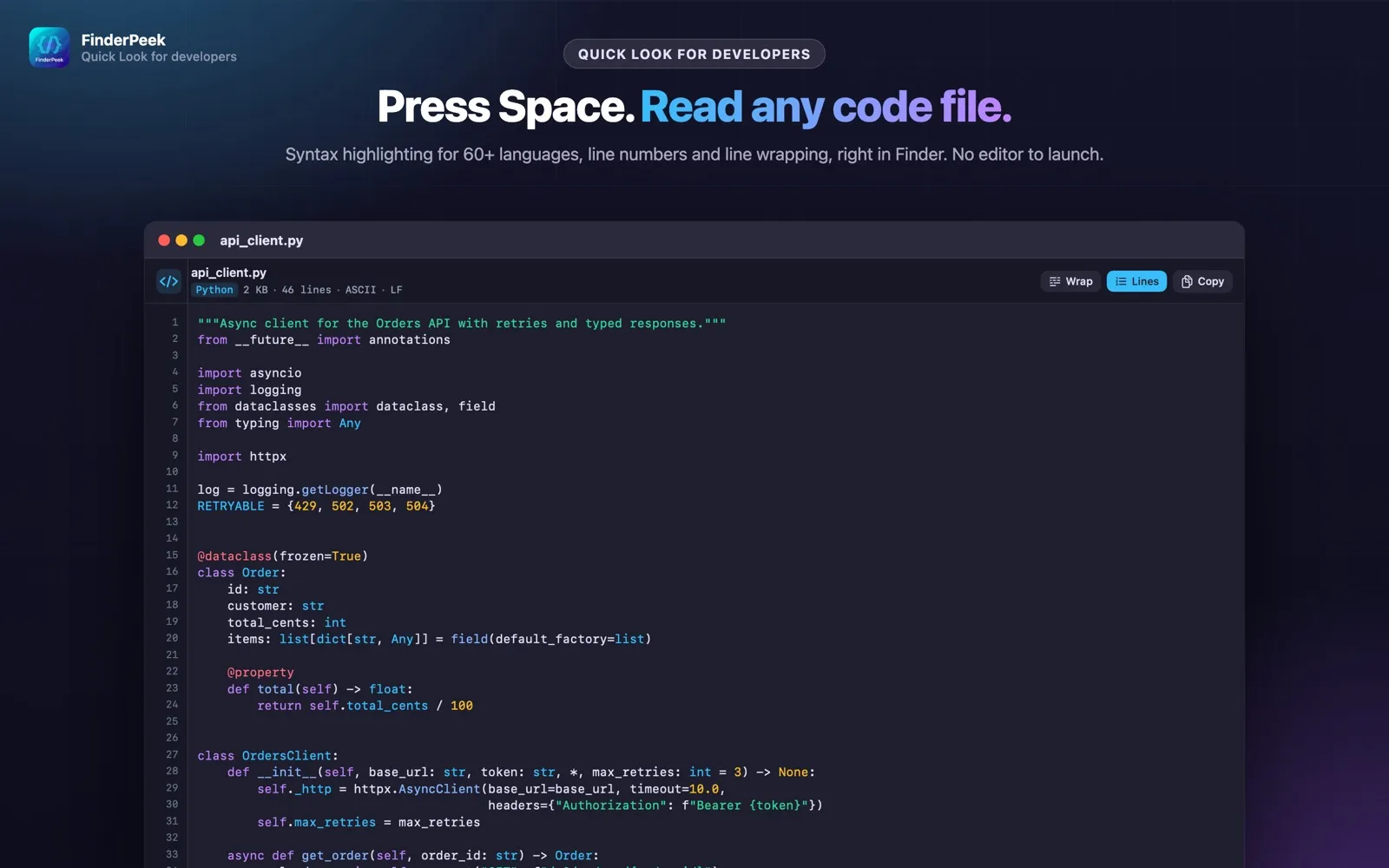
Guides
GIS Quick Viewer
GIS Quick Viewer adds professional geospatial previews to macOS Finder. Inspect GeoJSON, KML, Shapefile, GPX, and KMZ instantly without heavy GIS software.
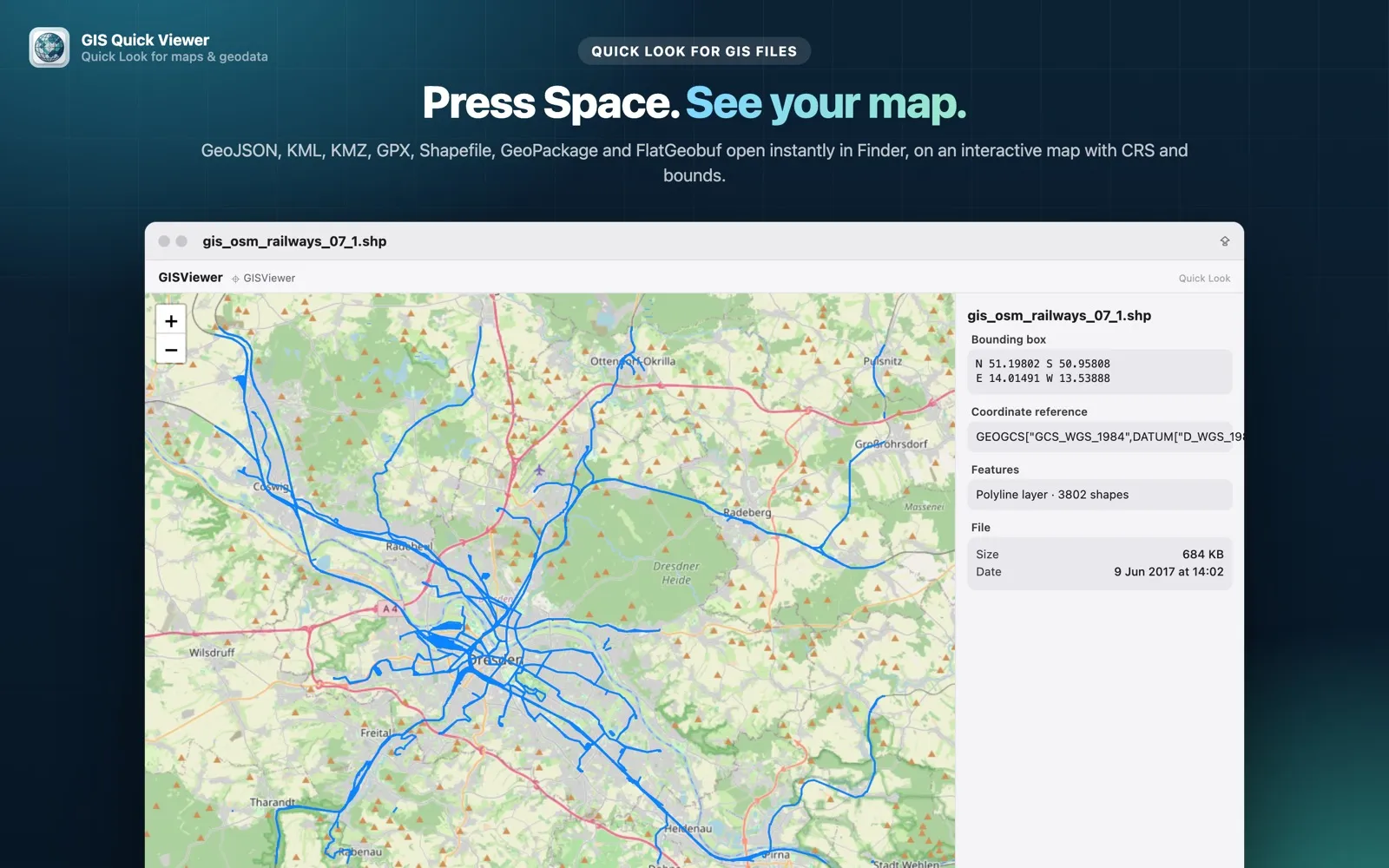
Guides
Quick Data Insights
Quick Data Insights extends macOS Quick Look for Parquet, SQLite, and Jupyter notebooks. Preview schemas and data in Finder without launching an IDE.
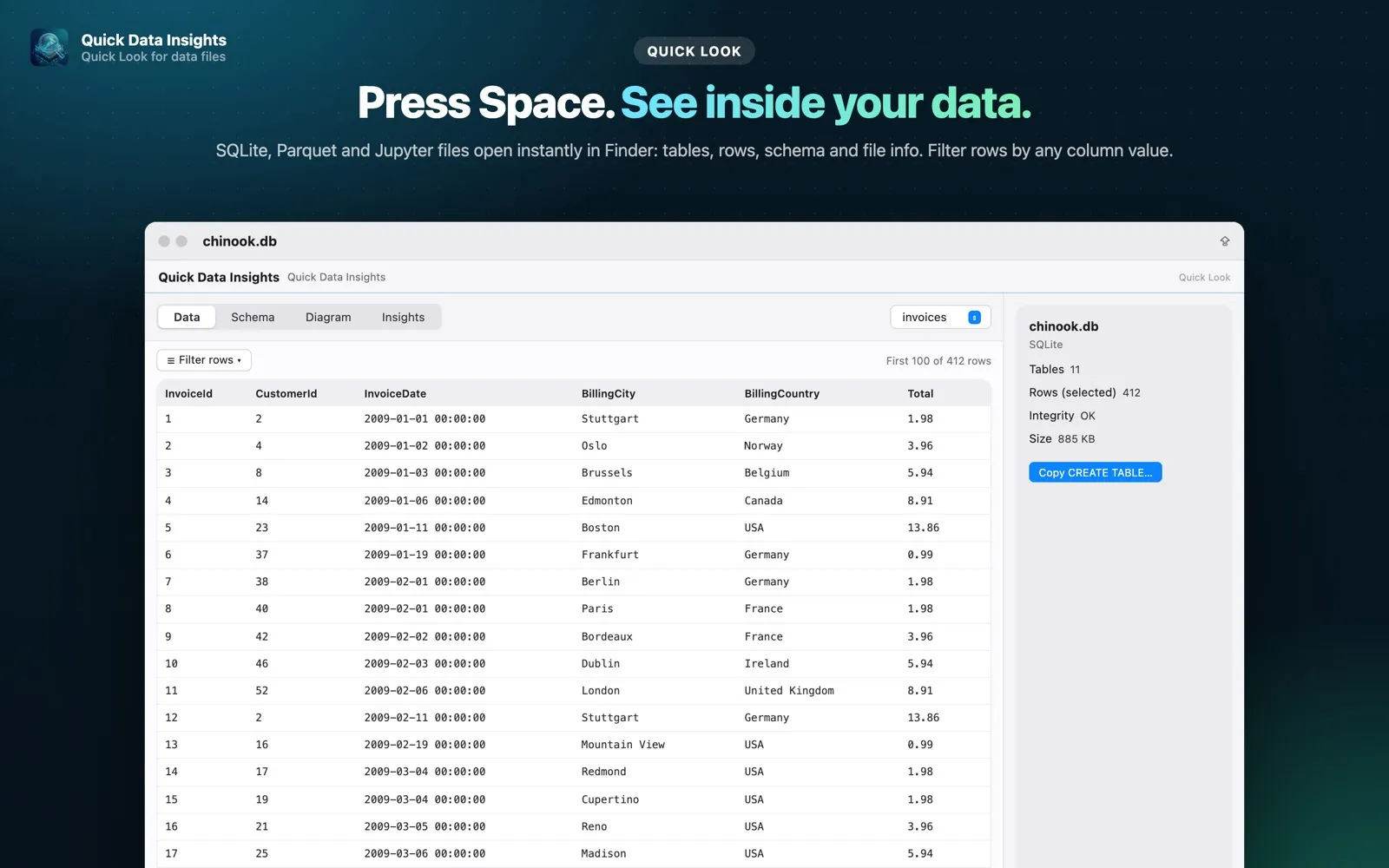
Guides
Questions
How do I turn on a Quick Look extension?
Install the app and open it once. Then go to System Settings › General › Login Items & Extensions › Quick Look and switch the extension on.
I pressed Space but still see a generic icon. What now?
Check that the extension is switched on in System Settings, then relaunch Finder (hold Option, right-click Finder in the Dock and choose Relaunch). Running qlmanage -r in Terminal also resets Quick Look.
Do these apps upload my files?
No. FinderPeek and Quick Data Insights never touch the network. GIS Quick Viewer reads your files locally and only downloads background map tiles.
Is there something similar for iPhone and iPad?
Yes. OmniFile Studio opens GPX, KML, GeoJSON, SQLite, Excel, CSV, JSON and more on iPhone and iPad.