What is a CSV file?
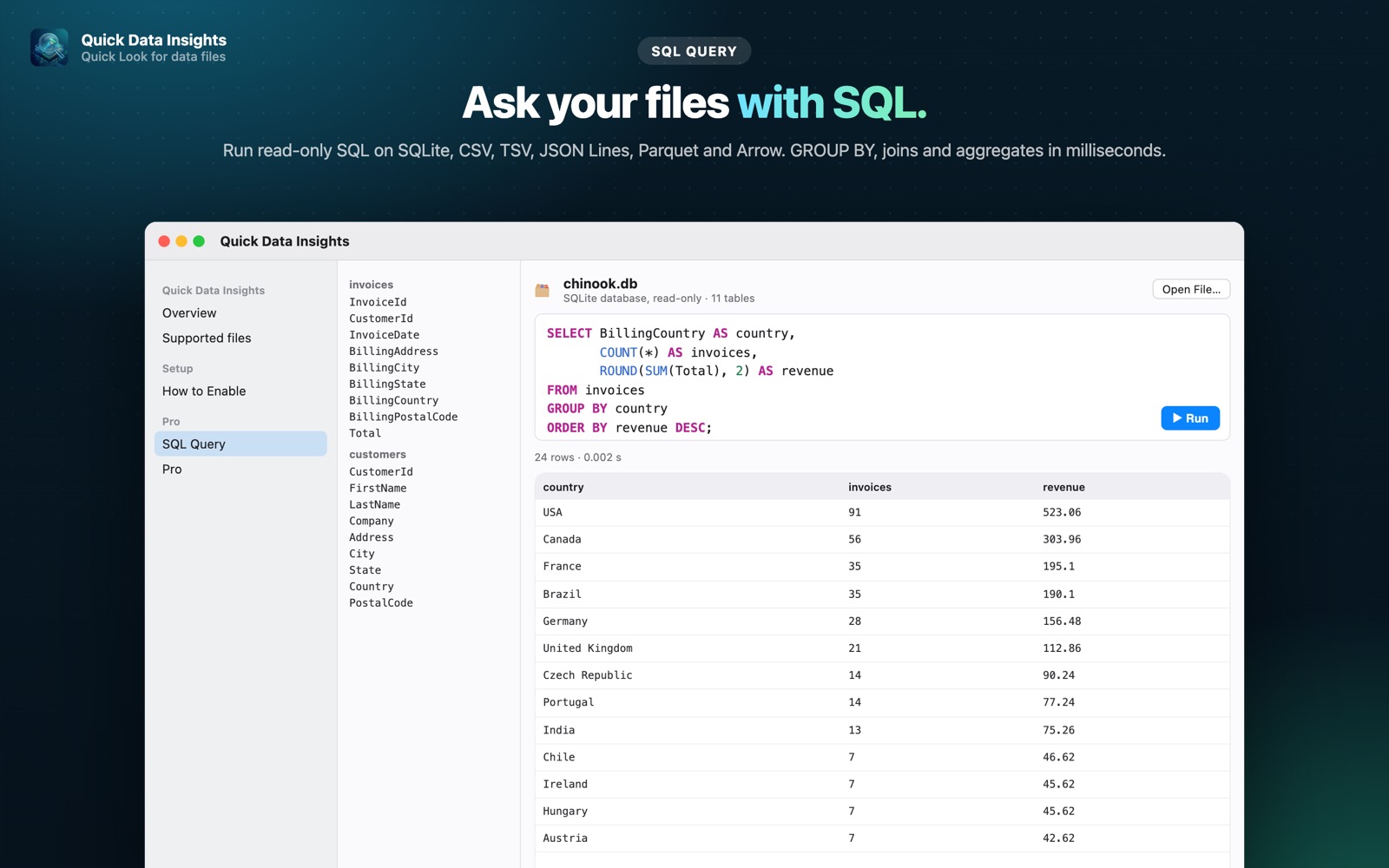
CSV is the most common way data gets shared, but answering even a simple question (“how many orders per country?”) usually means firing up Excel, Python or a database. SQL lets you ask it directly.
What you see with Quick Data Insights
- check_circleOpen CSV, TSV, JSON Lines, Parquet, Arrow or SQLite files (⌘O)
- check_circleNon-SQLite files are loaded into a table you can query instantly
- check_circleFilters, GROUP BY, joins and aggregates; run with ⌘↩
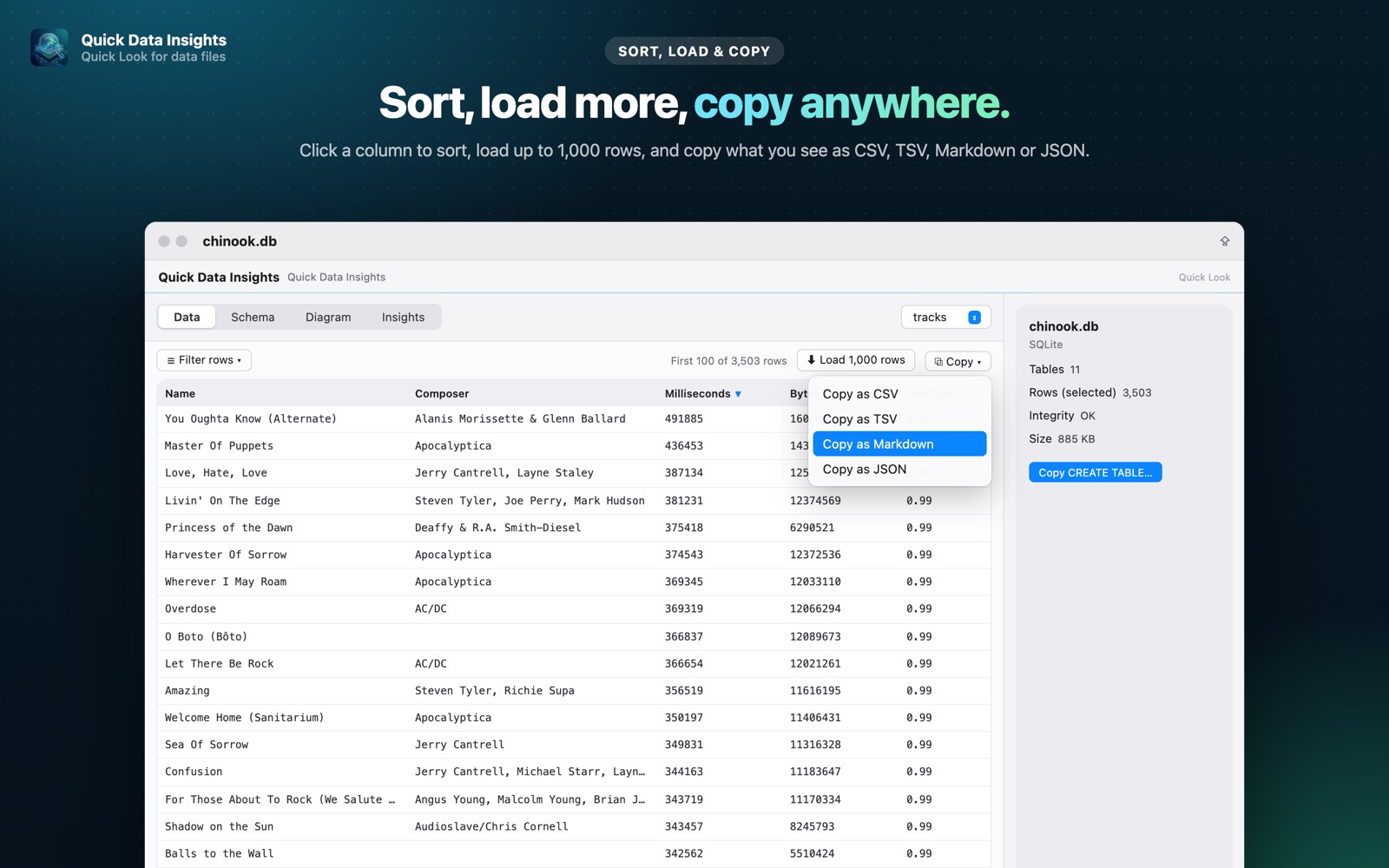
- check_circleCopy results as CSV, TSV, Markdown or JSON
How to open CSV files on your Mac
-
1
Install Quick Data Insights
Get it from the Mac App Store and launch it.
-
2
Open SQL Query
Choose SQL Query in the app sidebar and use Open File… (⌘O) to pick your CSV or other data file.
-
3
Write SQL and run it
Type a query such as SELECT country, COUNT(*) FROM data GROUP BY country and press ⌘↩.
lock Everything runs on your Mac. Files are opened read-only, with no network access, no analytics and no account.
Questions
Can I run SQL on a CSV file without a database server?
Yes. Quick Data Insights loads the CSV into a local table and runs your read-only SQL on your Mac.
Will it modify my CSV?
No. Queries are read-only and the source file is never changed.
Is the SQL Query window free?
SQL Query is part of Quick Data Insights Pro, a one-time purchase with a free 7-day trial.