What is a log file?
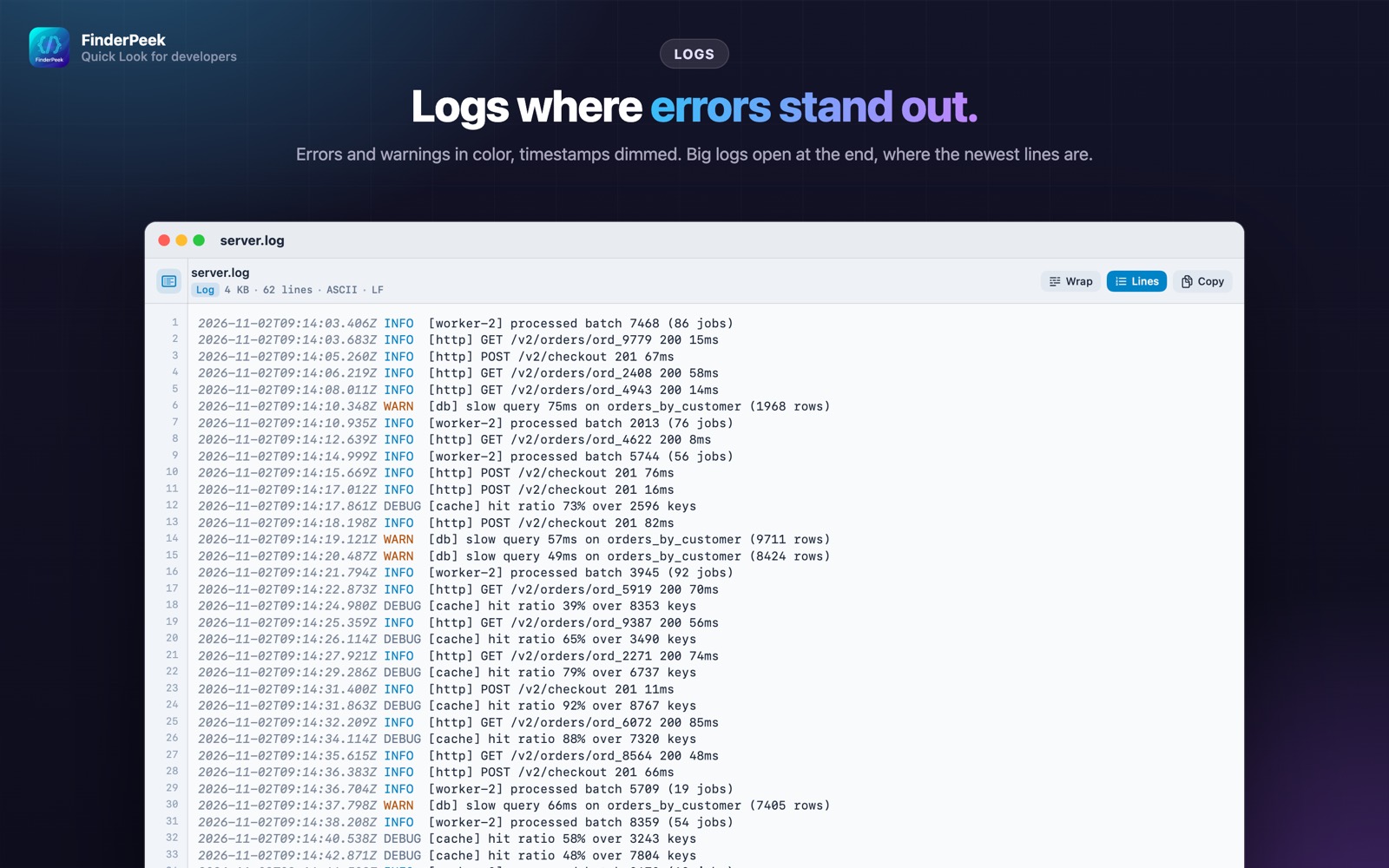
Log files from servers, apps, builds and crash reports can be huge. Finding the error usually means scrolling past thousands of lines or reaching for tail and grep.
What you see with FinderPeek
- check_circleErrors and warnings highlighted in color
- check_circleBig logs open at the newest lines
- check_circleHandles large files and any text encoding
- check_circleLight and dark appearance
How to open log files on your Mac
-
1
Install FinderPeek
Get it from the Mac App Store and open it once.
-
2
Turn on its viewers
In System Settings › General › Login Items & Extensions › Quick Look, enable the FinderPeek viewers you want. Use “Check a File” in the app to see which viewer handles a file.
-
3
Select a file and press Space
In Finder, click your log file and press the Space bar to read it right away.
lock Everything happens on your Mac. FinderPeek never connects to the internet and collects no data.
Questions
How do I open a .log file on a Mac quickly?
Install FinderPeek, enable its Config Viewer, select the log in Finder and press Space.
Will huge log files freeze Finder?
No. Large files stay fast with smart limits and open at the newest lines.
Are .env and dotfiles supported too?
Yes. .env, .gitignore, .editorconfig, INI and other dotfiles are shown by the same viewer.