What is a plist file?
Property lists (.plist) store settings and metadata across macOS and iOS: app Info.plist files, preferences in ~/Library/Preferences, launch agents and more. Many are saved in a binary format that looks like gibberish in a text editor.
What you see with FinderPeek
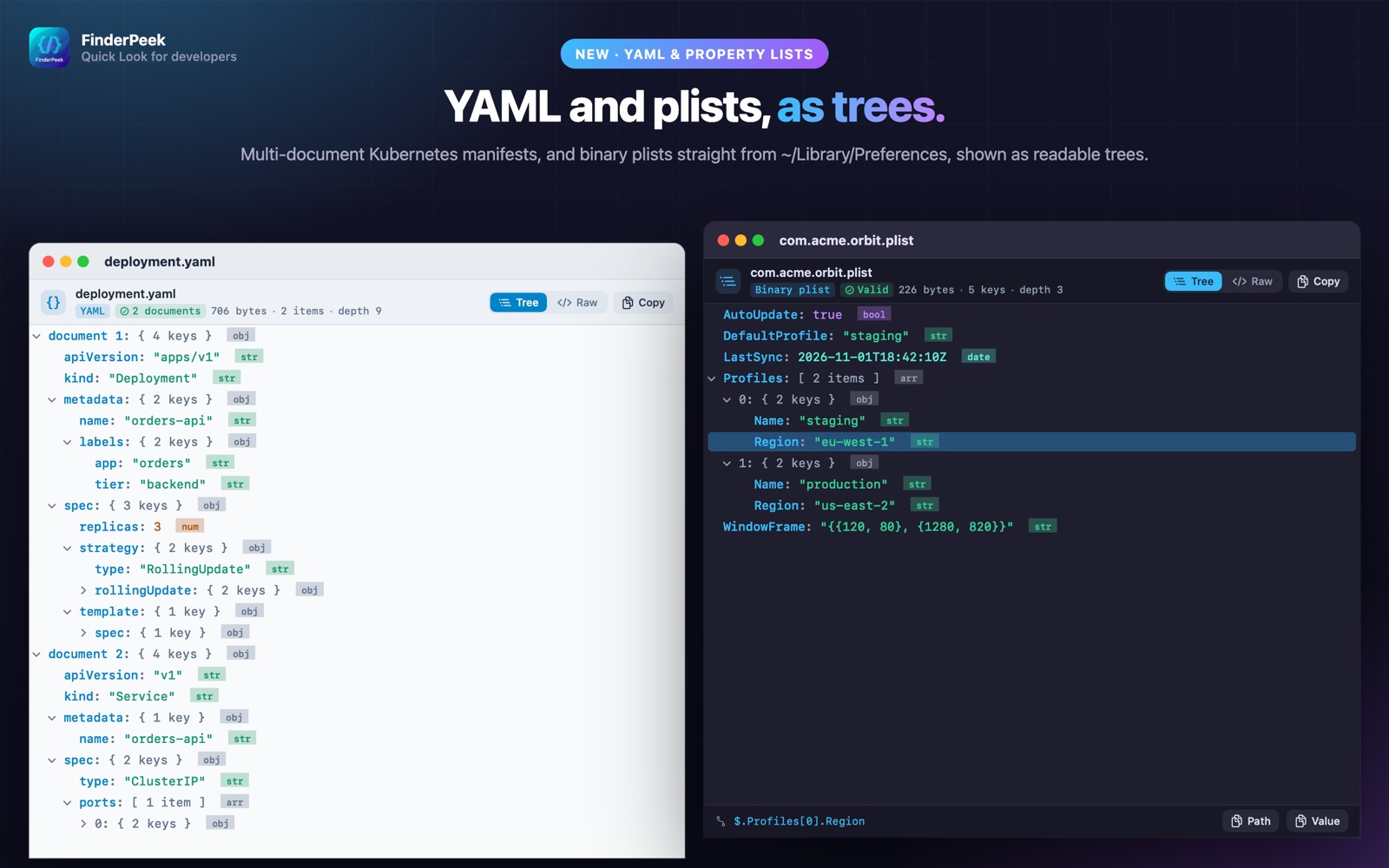
- check_circleXML and binary plists shown as a tree
- check_circleCorrect booleans, numbers, dates and data types
- check_circleCopy any value or its path
- check_circleNo Xcode or Terminal needed
How to open plist files on your Mac
-
1
Install FinderPeek
Get it from the Mac App Store and open it once.
-
2
Turn on its viewers
In System Settings › General › Login Items & Extensions › Quick Look, enable the FinderPeek viewers you want. Use “Check a File” in the app to see which viewer handles a file.
-
3
Select a file and press Space
In Finder, click your plist file and press the Space bar to read it right away.
lock Everything happens on your Mac. FinderPeek never connects to the internet and collects no data.
Questions
How do I read a binary plist on a Mac?
Install FinderPeek, enable its Data Viewer, select the .plist in Finder and press Space to see it as a tree.
Do I need Xcode?
No. FinderPeek previews plists directly in Finder.
Can it edit plists?
No. FinderPeek is a viewer; your files are never modified.