Why uploads get rejected
Visa and government portals, job applications, school systems and support desks often set strict size limits on images. A single photo from a modern phone can be several times over the limit, and the error message rarely tells you how to fix it.
How Compress & Upload helps
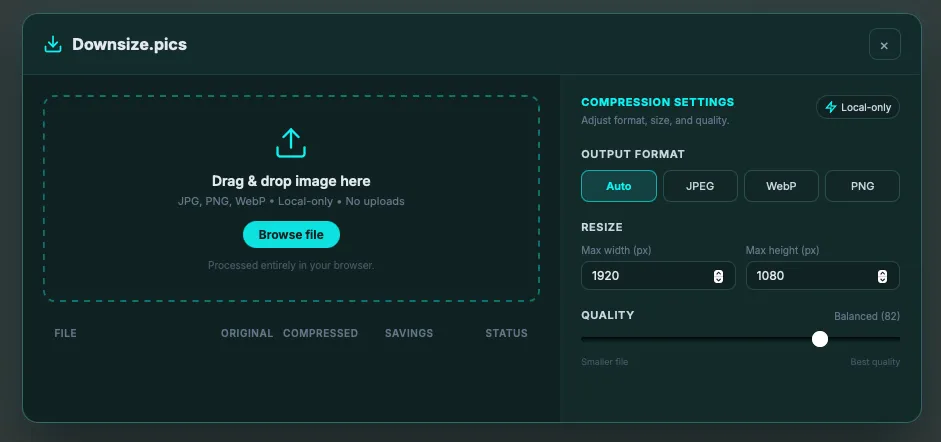
- check_circleImages are compressed automatically before the upload is sent
- check_circleNo need to export smaller copies in Preview or Photos first
- check_circlePick a stronger compression level for strict limits
- check_circleWorks the same in Safari on Mac and in Chrome
How to do it on your Mac
-
1
Install Compress & Upload
Get it from the Mac App Store for Safari, or from the Chrome Web Store for Chrome.
-
2
Enable the extension
In Safari, open Settings › Extensions and tick Compress & Upload. In Chrome it is active as soon as it is installed.
-
3
Upload as usual
Pick an image in any upload form. It is compressed on your computer before the website receives it.
lock All compression happens locally in your browser. Your images are never sent to any external server.
Questions
What if the file is still too large?
Choose a stronger compression level in the extension's settings and pick the image again.
Does it work with PDFs or videos?
Compress & Upload is built for images in web upload forms.
Do I need to change how I upload?
No. Pick or drop files exactly as you normally would.