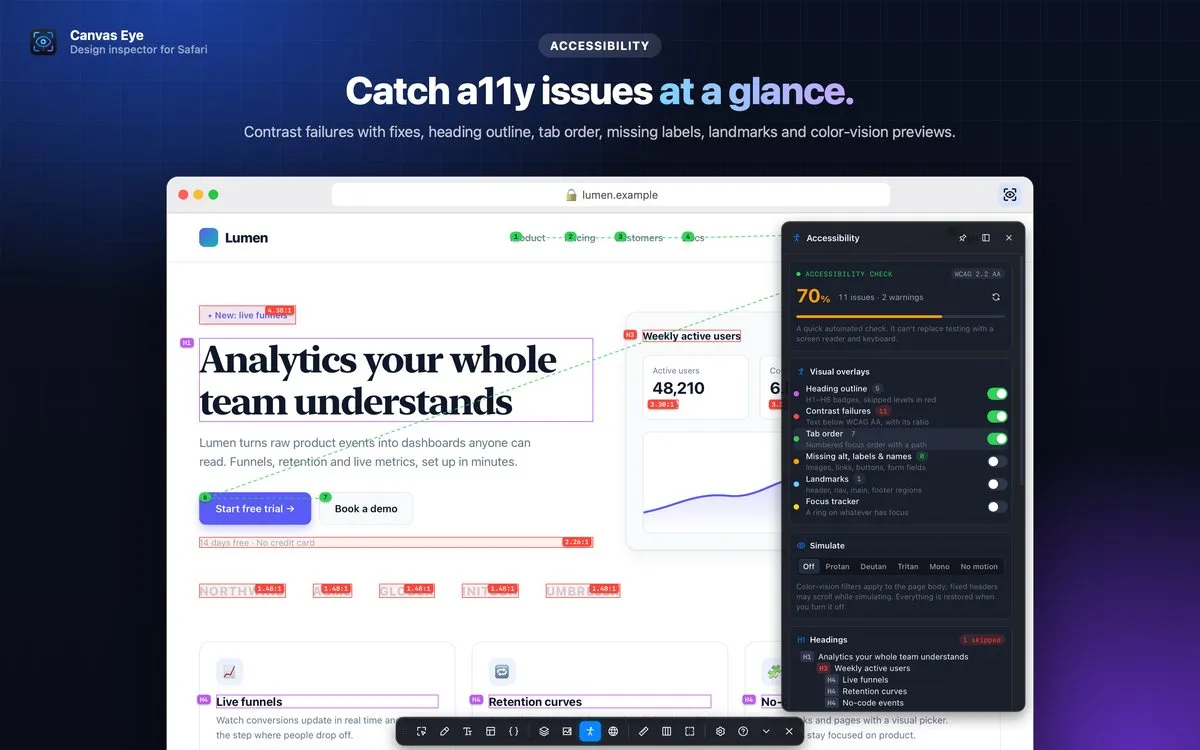
Accessibility checks while you browse
Most accessibility problems are visible if you know where to look: low-contrast text, skipped heading levels, a confusing tab order, images without alt text. Canvas Eye draws these over the live page so you can review a site in minutes, without a separate audit tool.
What Canvas Eye gives you
- check_circleWCAG 2.2 and APCA contrast checker (free)
- check_circleHeading outline (free)
- check_circleContrast failures with suggested fixes, tab order, missing labels and alt text (Pro)
- check_circleLandmarks and color-vision simulations (Pro)
How to do it on your Mac
-
1
Install Canvas Eye and enable it
Get it from the Mac App Store, then turn it on in Safari › Settings › Extensions.
-
2
Open it on the page
Press ⌥⇧C on the page you're reviewing.
-
3
Turn on the overlays
Open the accessibility tools and switch on the checks you need.
lock Everything runs on your Mac. Canvas Eye never sends page content anywhere, has no account and no analytics.
Questions
Does it support APCA as well as WCAG?
Yes. The contrast checker reports both WCAG 2.2 and APCA.
Is the contrast checker free?
Yes. The contrast checker and heading outline are free. All accessibility overlays are included in Canvas Eye Pro, with a 7-day free trial.
Does it replace a full accessibility audit?
It catches the common visual and structural issues quickly. For compliance sign-off, pair it with screen-reader testing.