What is a EML file?
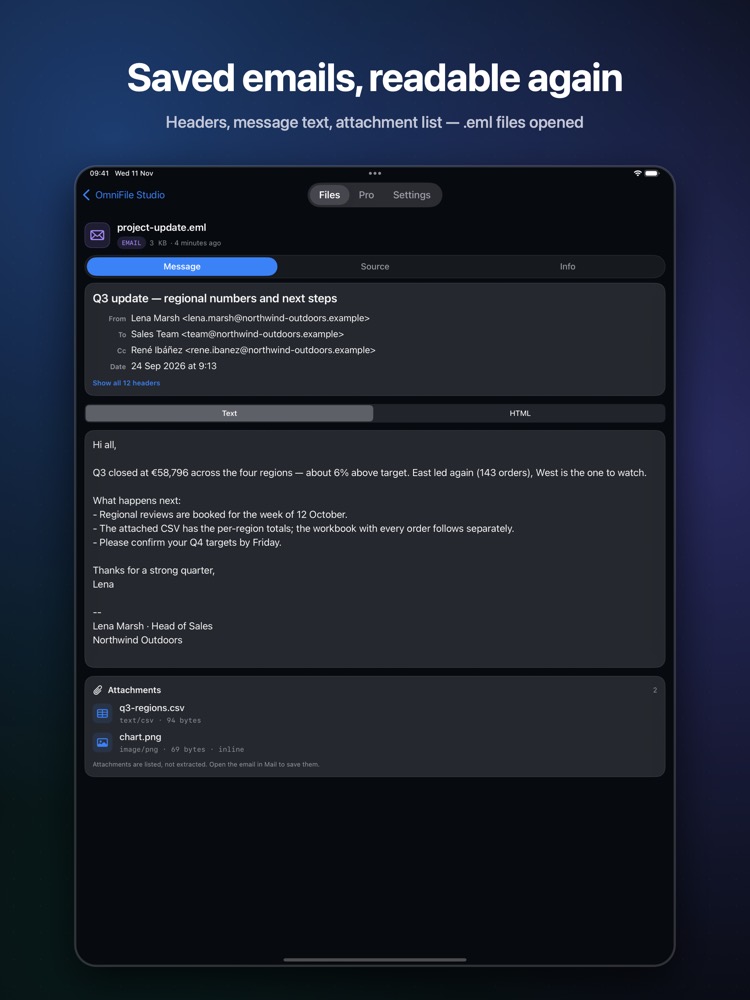
EML is the standard file format for a single saved email message. You get them as attachments, exports from mail clients and evidence for support tickets — and iOS can't open them on its own.
What you see with OmniFile Studio
- check_circleSubject, sender and recipients
- check_circleMessage as plain text or HTML
- check_circleAttachment list
- check_circleQuick Look preview in Files, Mail and Messages
How to open EML files on your iPhone & iPad
-
1
Install OmniFile Studio
Get it free from the App Store on your iPhone or iPad.
-
2
Open or share the file
Tap the file in Files, or use the share sheet in Mail, WhatsApp, Safari or AirDrop and pick Quick View or Open in OmniFile Studio.
-
3
Explore it
Your EML file opens in a dedicated viewer, read entirely on your device.
lock Files are read on your device and never uploaded. No accounts, no analytics, no tracking.
Questions
How do I open an .eml file on iPhone?
Install OmniFile Studio, then tap the .eml in Files or share it to the app.
Can I see attachments?
Yes. The attachment list is shown with the message.
Is the email sent anywhere?
No. It's read on your device.
More OmniFile Studio guides
Open GPX on iPhone
arrow_forward
Open FIT on iPhone
arrow_forward
Open KML / KMZ on iPhone
arrow_forward
Open GeoJSON / GeoPackage on iPhone
arrow_forward
Open SQLite on iPhone
arrow_forward
Open Excel on iPhone
arrow_forward
Open CSV on iPhone
arrow_forward
Open JSON on iPhone
arrow_forward
Open Markdown on iPhone
arrow_forward
Open YAML on iPhone
arrow_forward
Open log on iPhone
arrow_forward
Open Arrow / Feather on iPhone
arrow_forward