What is a SQLite file?
SQLite databases (.sqlite, .sqlite3, .db, .db3) power apps, Core Data stores and data projects. On iOS there's no built-in way to look inside one.
What you see with OmniFile Studio
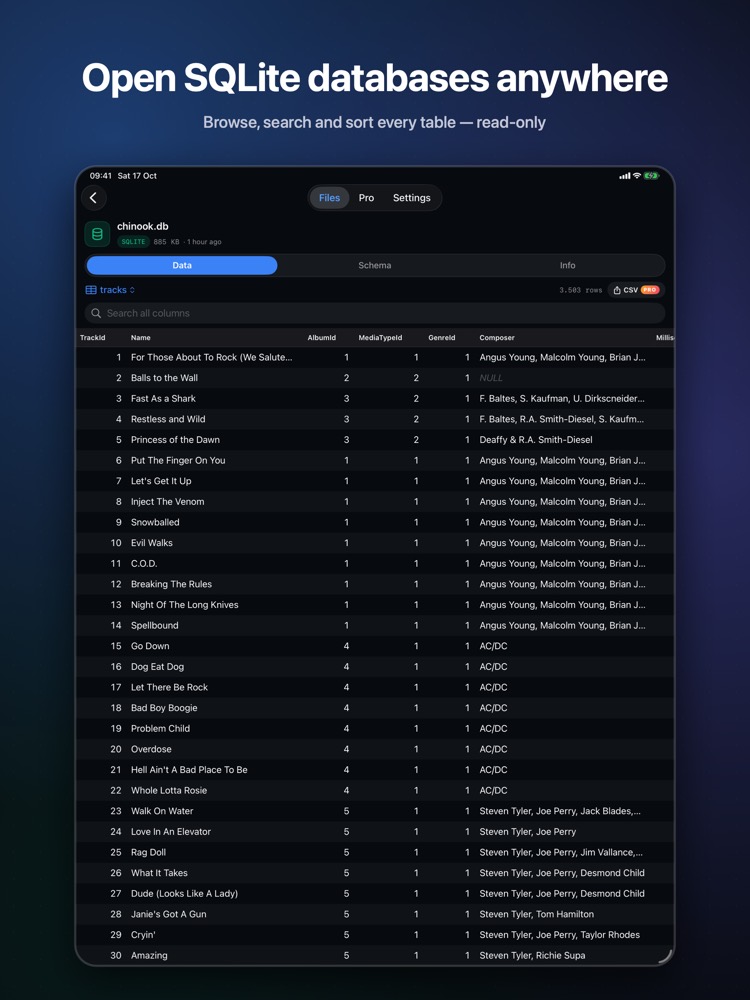
- check_circleEvery table and view with row counts, fast paging, search and sort
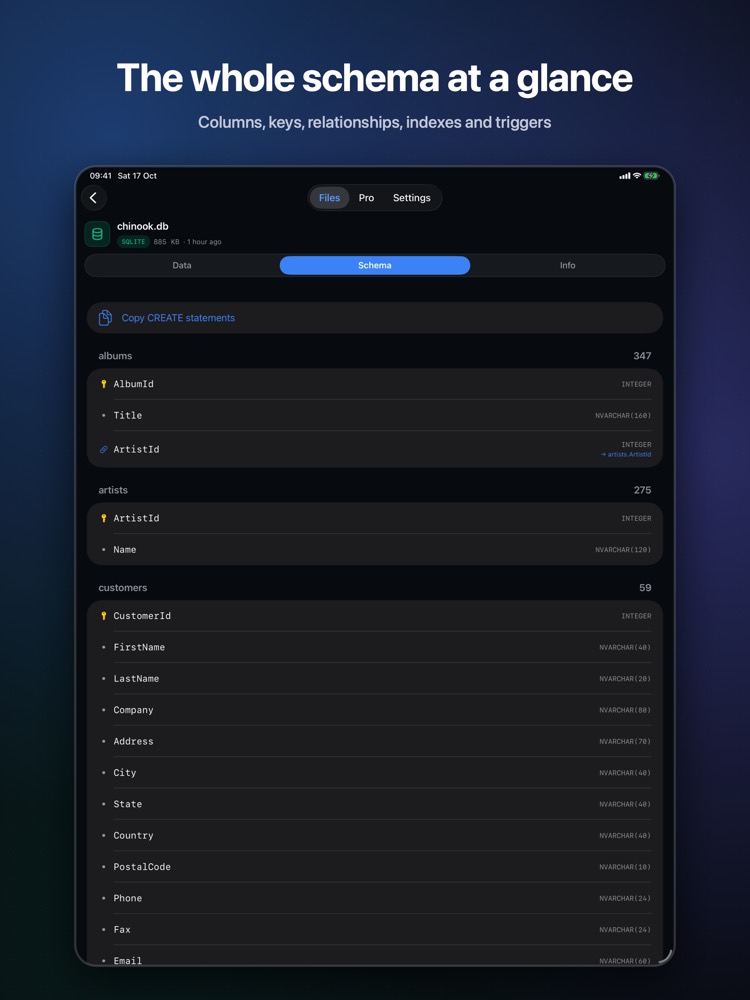
- check_circleFull schema: column types, keys, foreign keys, indexes and triggers
- check_circleCore Data stores by entity name — always read-only
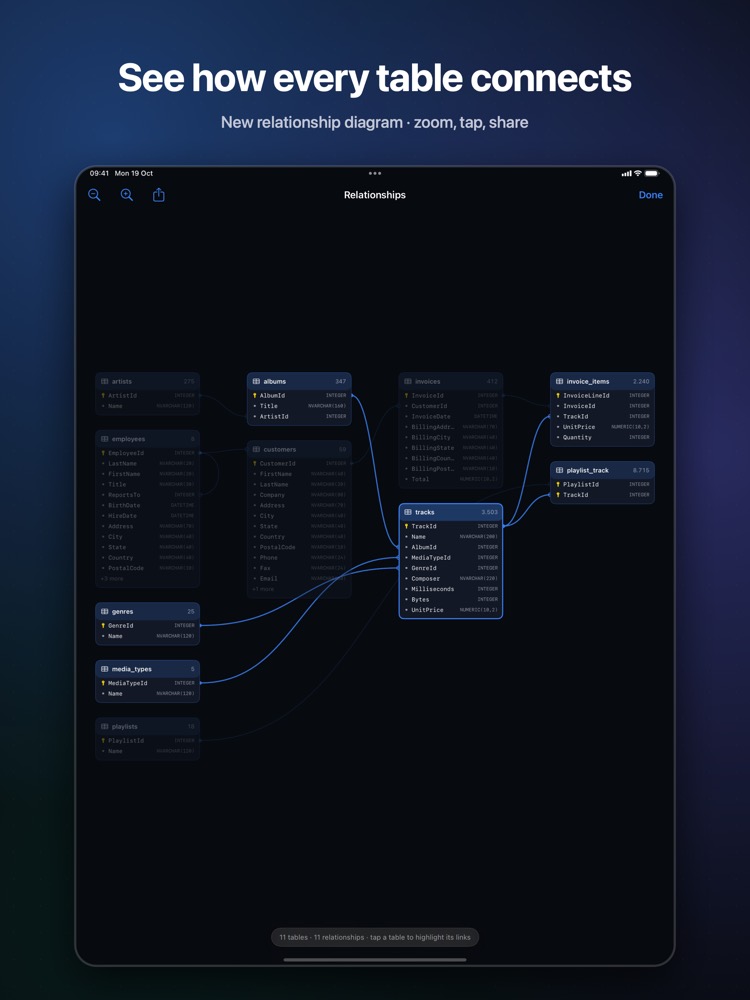
- check_circleSQL Query Console and Relationship Diagram (Pro)
How to open SQLite files on your iPhone & iPad
-
1
Install OmniFile Studio
Get it free from the App Store on your iPhone or iPad.
-
2
Open or share the file
Tap the file in Files, or use the share sheet in Mail, WhatsApp, Safari or AirDrop and pick Quick View or Open in OmniFile Studio.
-
3
Explore it
Your SQLite file opens in a dedicated viewer, read entirely on your device.
lock Files are read on your device and never uploaded. No accounts, no analytics, no tracking.
Questions
How do I open a .db file on my iPhone?
Install OmniFile Studio and open the file from Files or share it to the app.
Can it modify the database?
No. Databases are always opened read-only.
Can I run SQL on my iPhone?
Yes. The SQL Query Console (Pro) runs read-only SELECT queries and shares results as CSV.
More OmniFile Studio guides
Open GPX on iPhone
arrow_forward
Open FIT on iPhone
arrow_forward
Open KML / KMZ on iPhone
arrow_forward
Open GeoJSON / GeoPackage on iPhone
arrow_forward
Open Excel on iPhone
arrow_forward
Open CSV on iPhone
arrow_forward
Open JSON on iPhone
arrow_forward
Open EML on iPhone
arrow_forward
Open Markdown on iPhone
arrow_forward
Open YAML on iPhone
arrow_forward
Open log on iPhone
arrow_forward
Open Arrow / Feather on iPhone
arrow_forward